Setup guide
Set up Hatchway Age Gate
After installing Hatchway, choose which pages need an age gate, then enable the app embed in your theme. Use this guide for both Online Store 2.0 and vintage themes.
You enable and save the embed separately in each theme. Saving a draft does not publish it or change the embed in your published theme.
Watch on YouTube. You can also follow the written steps below.
Screenshots use the Hatchway production app on a development store. Your theme name and gate appearance can differ.
Choose targeting and behavior
- In Shopify admin, open Apps → Hatchway Age Gate.
- Follow the setup checklist to choose whole-store or product targeting. For product targeting, configure your tags and any collection rules.
- Choose how shoppers confirm their age under Gate behavior, then save and confirm your settings.
- If you use Pro, review the checkout enforcement choice in the checklist.
Targeting, gate behavior, and checkout enforcement apply across your shop. Changes in the app can affect your published storefront even while you work on a draft theme.
Enable your published theme
- In the setup checklist, choose Set up your published theme. This opens the theme editor with Hatchway selected for activation.
- In App embeds, confirm that Hatchway Age Gate is on.
- Choose Save. Opening the editor alone does not save activation.
- Return to Hatchway to check the published-theme status.
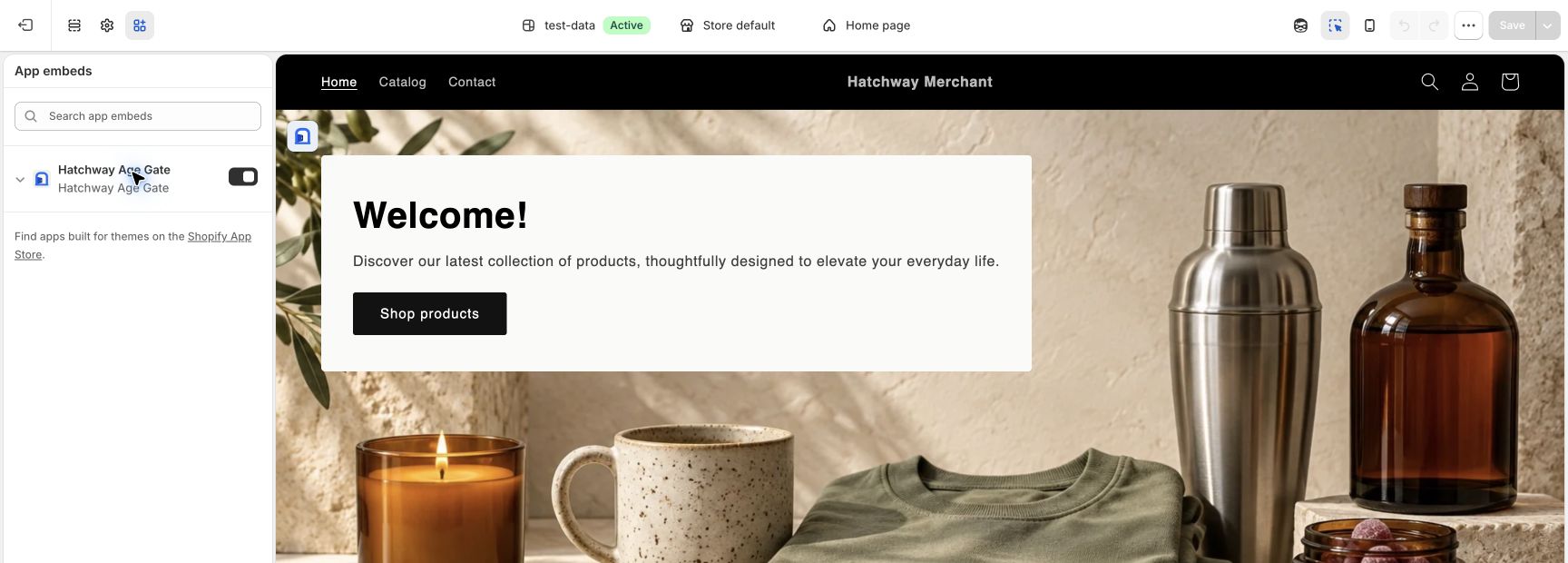
If the app cannot check activation, open your published theme and check the switch in App embeds. An unknown status does not mean the embed is disabled.
Choose a draft or another theme
- Choose Choose another theme, or open Online Store → Themes.
- Find the theme you want and choose its Edit theme control.
- Open App embeds, turn on Hatchway Age Gate, and choose Save.
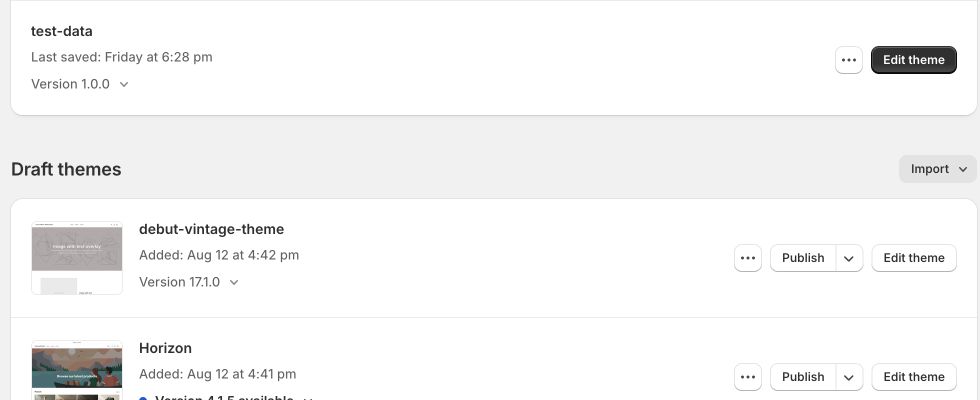
The app reports activation for your published theme. Editing or previewing a draft does not update that status.
Before publishing another theme, check its Hatchway activation, copy, and appearance. Keep checkout enforcement unchanged when editing a draft.
Customize and preview
In the theme editor, expand Hatchway Age Gate under App embeds. Set the text, colors, and appearance for that theme.
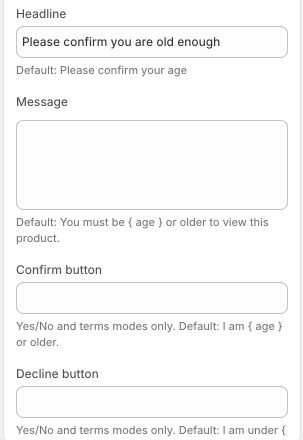
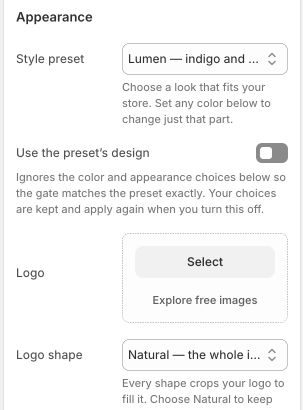
Choose Preview Hatchway Age Gate in the preview area. Check the text and buttons in desktop and mobile preview, then save your changes.
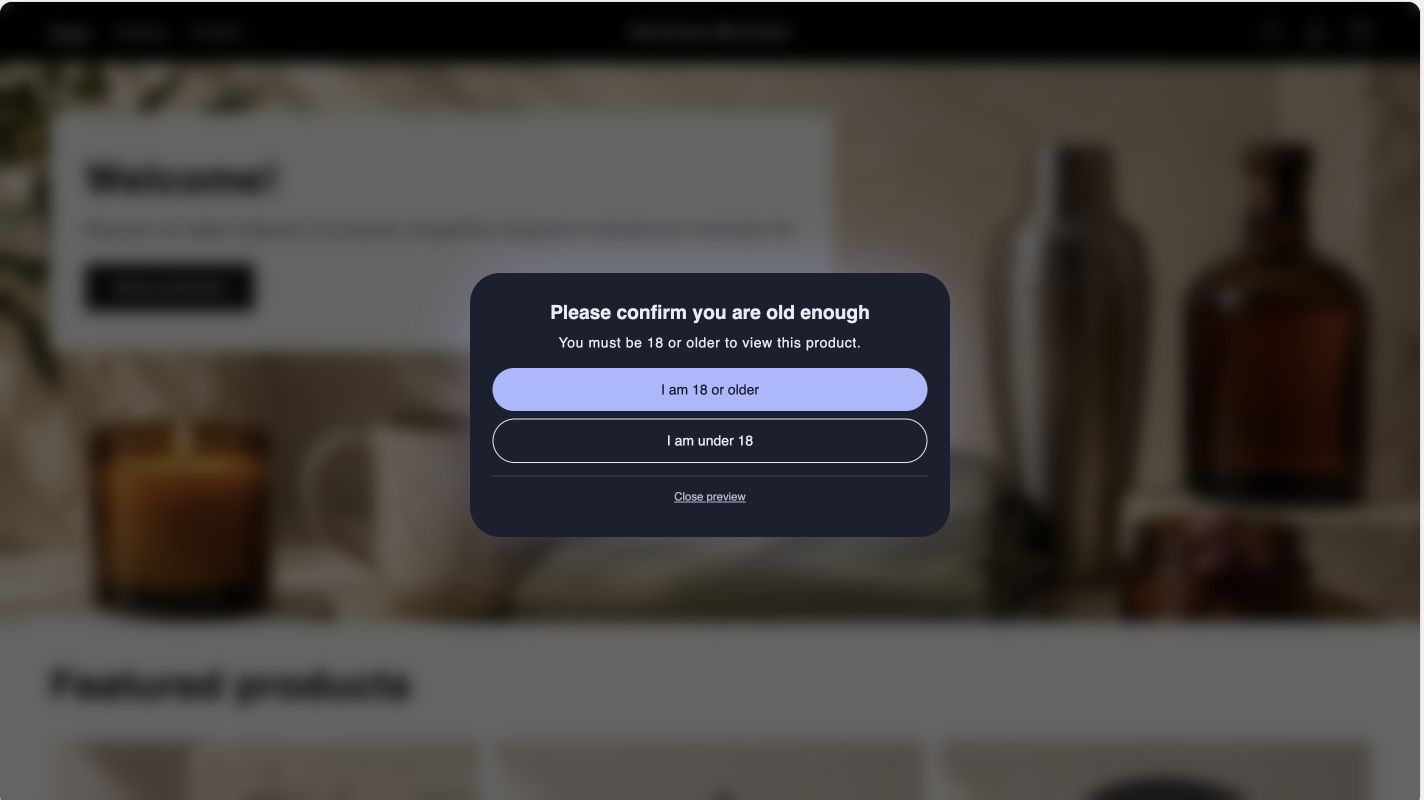
Use this editor preview when working on a draft. It checks appearance without recording an age confirmation or verifying checkout enforcement.
In the app, Preview gate opens the appearance preview and records that you opened it. It does not prove a shopper can complete checkout.
For multilingual stores, follow the translation guide.
Understand where the gate appears
The embed supports your online store’s home, product, collection, cart, and content templates. Your targeting rules determine whether the popup appears.
- Whole-store targeting: gates pages across your online store.
- Product targeting: matches product tags and the collection rules you configure. Cart checks use the products in the cart.
- Collection rules: match products that belong to a collection. Opening the collection page itself does not trigger that rule.
The theme popup does not appear inside checkout, Shop, or POS. Pro checkout enforcement is a separate feature; an appearance preview does not test it.
Turn off the embed
If you use Pro: before disabling the published embed, turn off checkout enforcement in Hatchway and wait for confirmation.
This also applies when enforcement is waiting or pending. If enforcement is already off, leave it off. If the change fails, resolve the error before disabling the published embed.
- Open the theme you want to change through Online Store → Themes, or choose Open theme editor in Hatchway.
- Open App embeds and turn off Hatchway Age Gate.
- Choose Save.
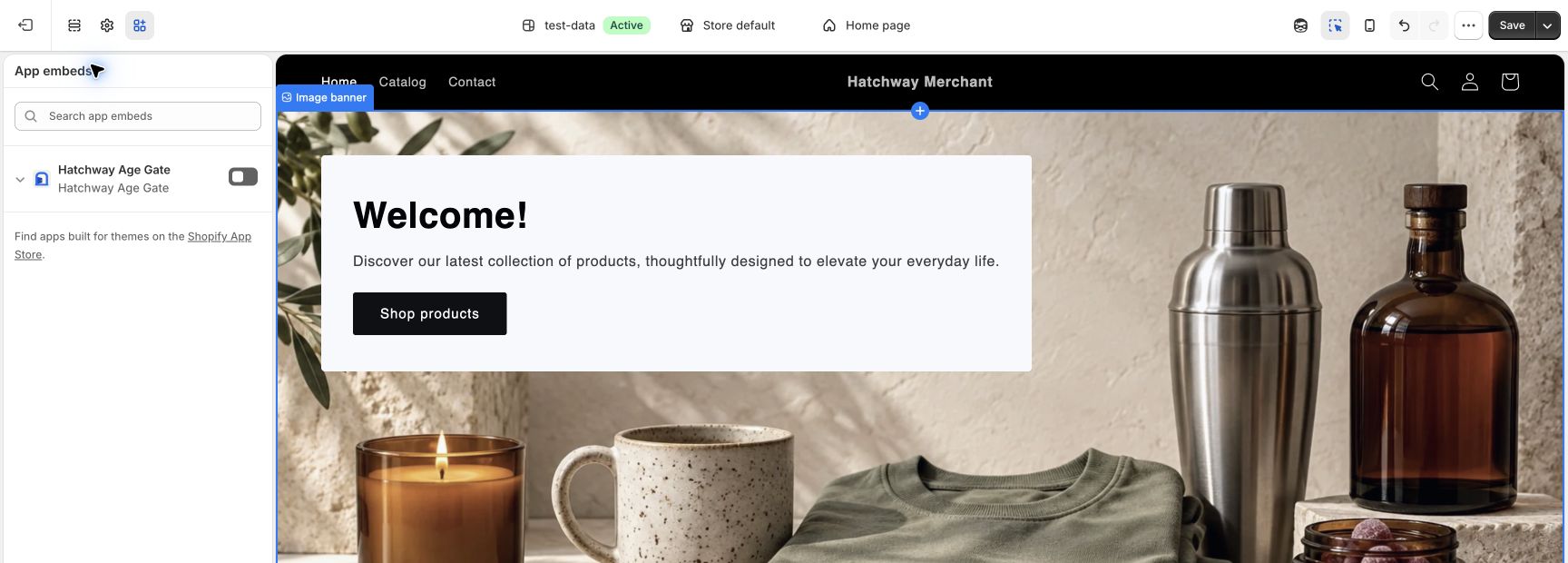
Repeat for each theme where you want to disable the embed. When you edit a draft, keep shop-wide checkout enforcement unchanged.
Check your setup
After saving the published theme, return to Hatchway and check its status. Test a page that matches your targeting and, for product targeting, a page that does not.
If you use checkout enforcement, test it separately on your development store before relying on it. The setup preview does not create a verified shopper session.
If you need help, contact Buildtan support with the theme name and the step that failed.