GuideLast updated September 8, 2026
How to translate a Shopify age gate
If you sell in more than one language, translate your age gate along with the rest of your storefront. This guide explains what to translate, what Hatchway translates for you, and what remains in English.
How translation works
You won’t find a language setting inside Hatchway. There isn’t one, and that is deliberate. Hatchway uses Shopify’s translation system.
Translation depends on who provides the text:
- Text you enter. Translate headlines, messages, buttons, and terms with Shopify’s free Translate & Adapt app.
- Fields you leave blank. Hatchway provides defaults in nine languages.
- Interface text. Hatchway provides error messages, badges, and validation notices in the same nine languages. You can’t edit these strings.
Translation is available on every Hatchway plan.
Use a supported default language
Hatchway provides translated defaults in English, French, German, Spanish, Dutch, Italian, Polish, Portuguese, and Danish. If you leave a field blank, shoppers see its default in their storefront language.
Hatchway’s default translations are machine-translated. If exact wording matters in your market, enter your own copy and translate it with Translate & Adapt.
This guide is not legal advice. A translation does not confirm that your gate complies with local law.
Add the language in Shopify
Nothing else on this page works until the language exists on your store. In your Shopify admin:
- Go to Settings, then Languages.
- Choose Add language, then select a language.
- Assign it to your domain when Shopify asks.
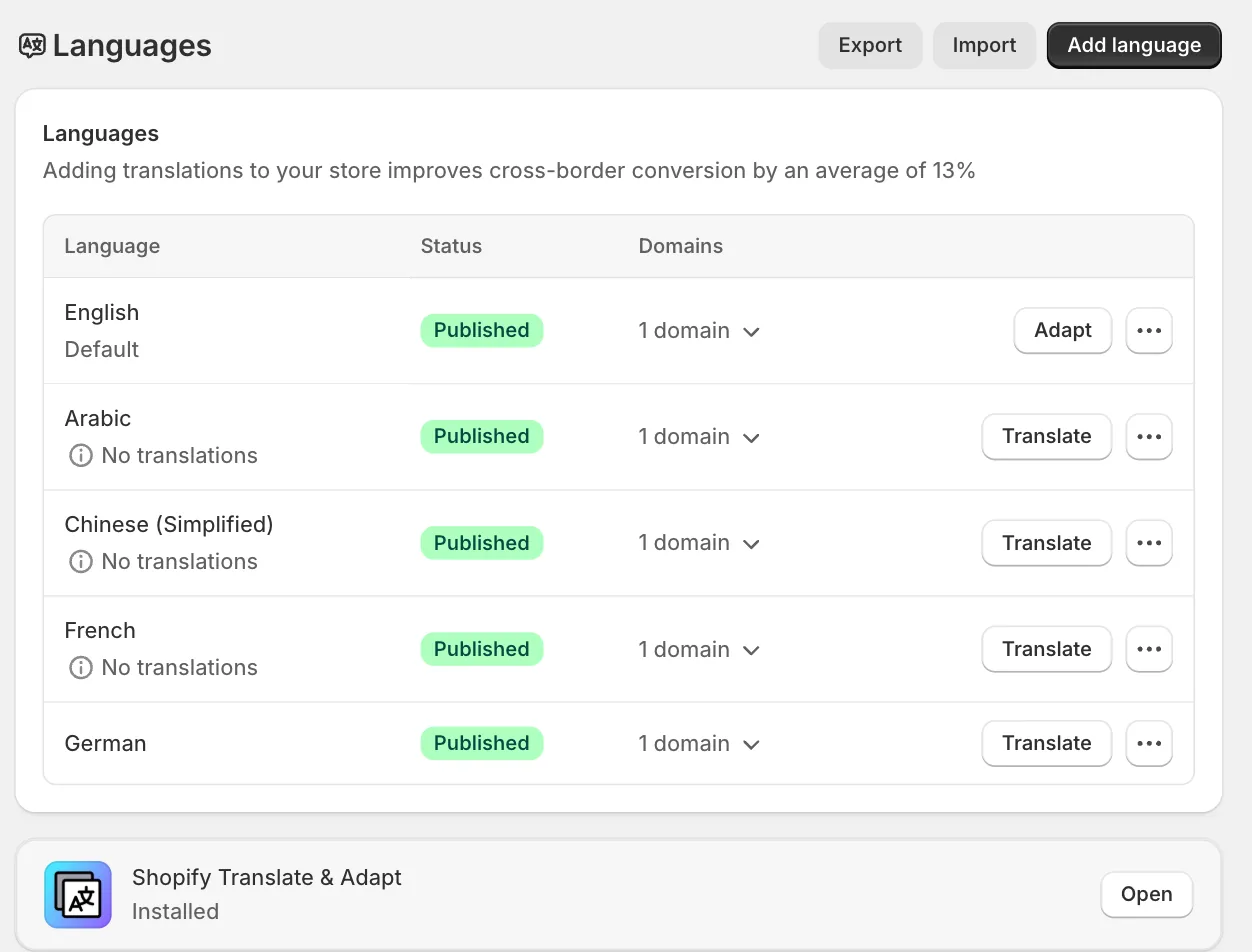
If you use Shopify Markets, enable the language in each market where you want to offer it.
Hatchway does not limit your languages. Shopify supports up to 20 published languages per store.
Choose who provides each field
Translation works one field at a time. If you enter text in the theme editor, translate that field yourself. If you leave it blank and Hatchway supports the storefront language, Hatchway provides the translation.
Blank fields do not appear in Translate & Adapt. Shopify has no source text to show for them.
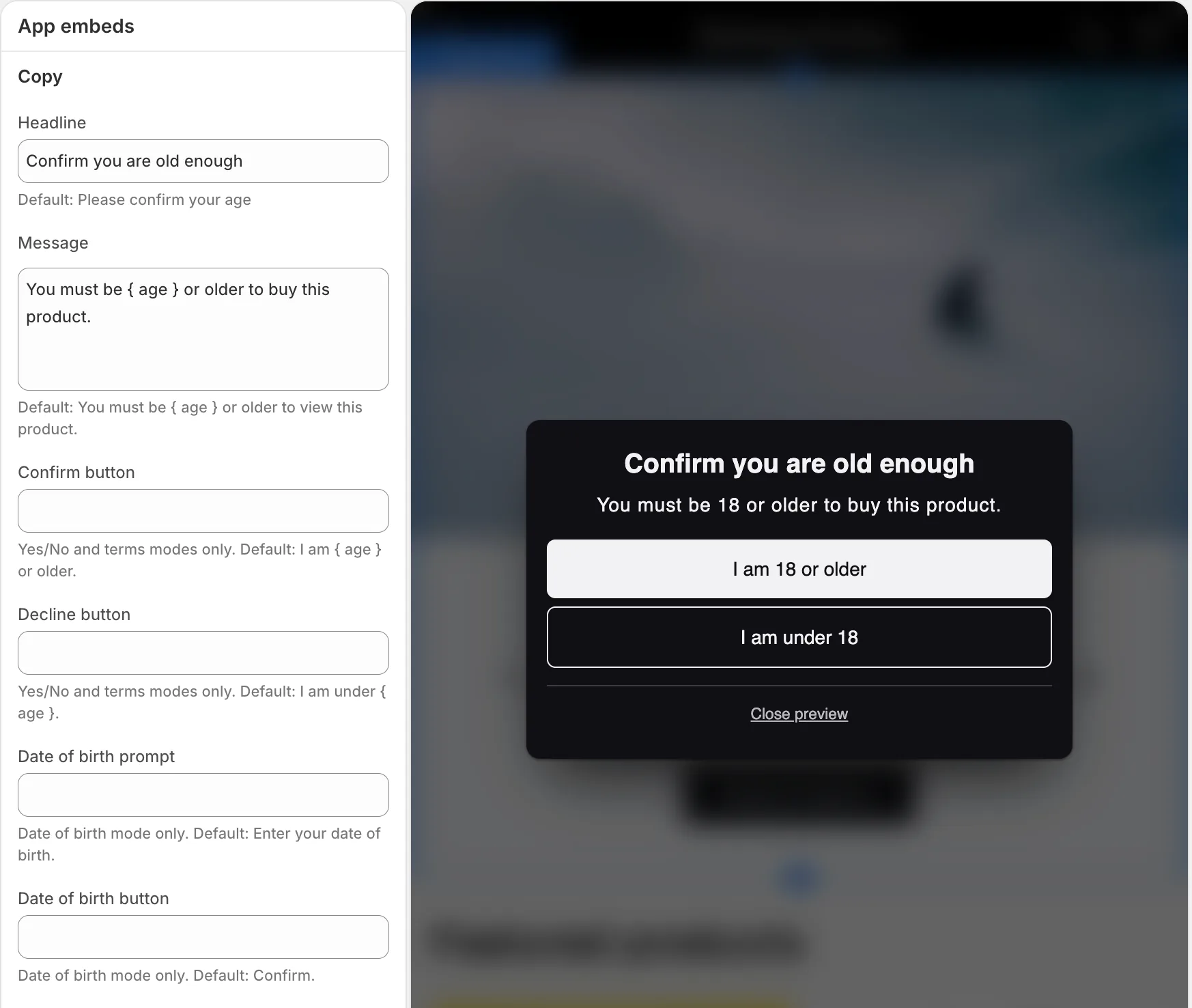
{ age } with 18.To show the product’s age threshold, enter { age } in any copy field. For example, You must be { age } or older shows 18 or 21 based on the product.
Use single braces. If every product uses one threshold, you can enter the number instead.
Leave a field blank to use our translation
Nine fields support translated defaults. Under Copy, they include the headline, message, buttons, date-of-birth prompt, and date-of-birth button. Under Terms mode, they include the checkbox label, decline headline, and decline message.
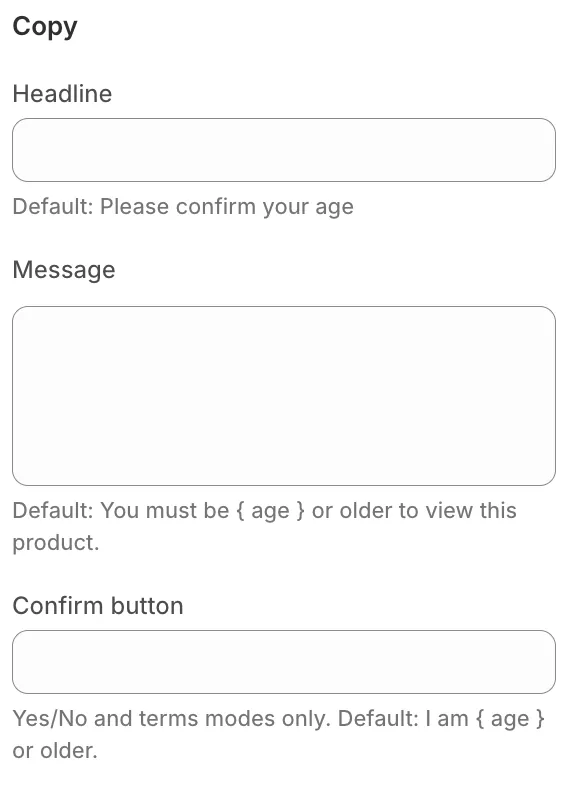
Keep a field empty to use its translated default. The help text shows the default without adding a value to the field.
Translate your own words in Translate & Adapt
To translate the fields you filled, open Shopify’s free Translate & Adapt app. Select the language, then go to Theme > App embeds.
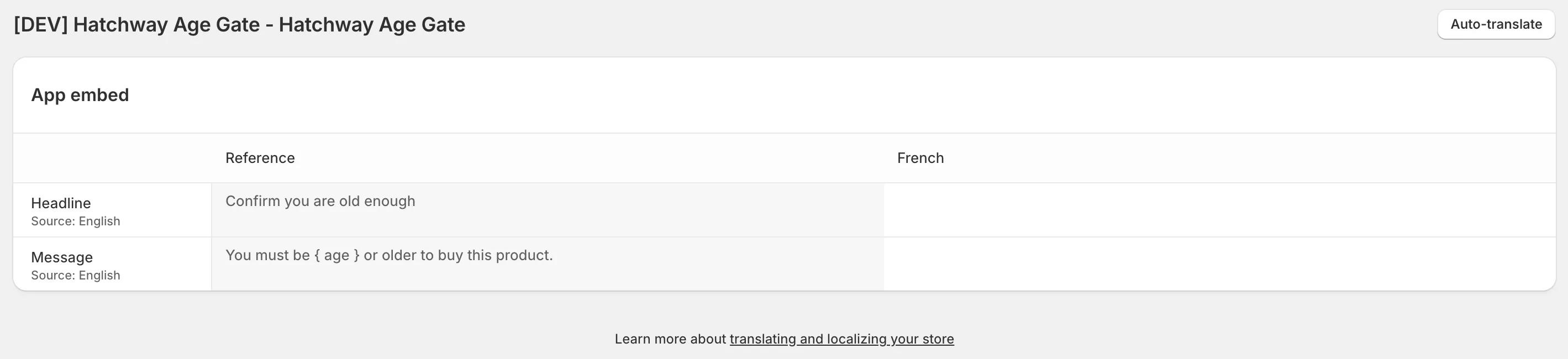
When you translate a field:
- Keep
{ age }unchanged. Do not remove the braces or translate the wordage. - Preserve the terms formatting. The rich text field supports bold text, links, and lists.
- Use one terms URL for every language. Shopify does not treat URL fields as translatable.
If a custom field has no translation when you publish the language, Shopify shows it in your store’s primary language.
After you finish the translations, return to Settings > Languages. From the ... menu for the language, choose Publish.
Check the translation
Before you publish the language, use Preview Gate in the Hatchway admin to check the translation.
After you publish it, use your storefront’s language selector and open a gated product.
If the gate does not appear, confirm that the app embed is active and the product has the correct tag.
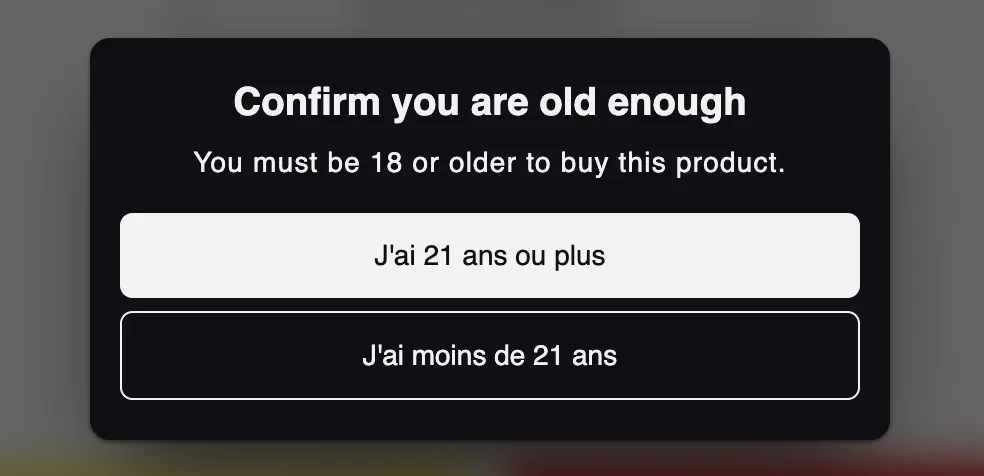
Know what remains in English
Hatchway interface text. The badge, error messages, date-of-birth notice, terms link, and reference code use a supported default language or English.
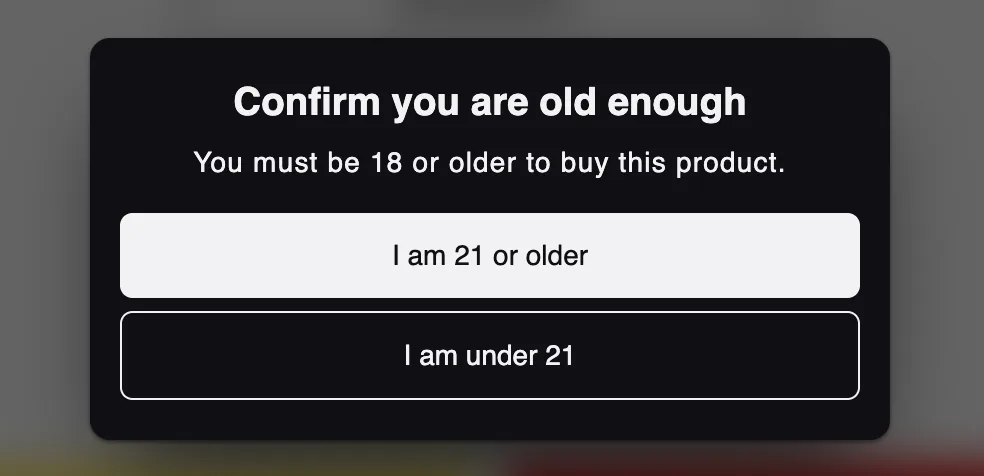
To translate the buttons into Chinese, enter your own English button labels in the theme editor. Then translate those fields with Translate & Adapt.
Hatchway settings. The theme editor panel follows your store’s active language when Hatchway supports it. The Hatchway admin app remains in English.
Order records. Age confirmations, such as 21+ confirmed 2026-09-08, remain in English so records use one format.
Check right-to-left layouts
Hatchway follows your theme’s text direction. Shopify sets the page language, but your theme must set the direction.
Hatchway does not provide default Arabic or Hebrew copy. Enter your own source text, translate it, then test the gate with your theme.
Where Hatchway fits
Hatchway Age Gate includes nine default languages and supports custom text in any language that Shopify supports. Translation is available on every plan.
Hatchway is a self-declaration gate. It does not verify identity or store shopper personal data.